We can't find the internet
Attempting to reconnect
Something went wrong!
Attempting to reconnect
Frequently Asked Questions
General
Login into "client area" and from Dashboard select "My Services" and then "Manage Services" and then click "Login to Service" which will then open "frontend" email migration webpage
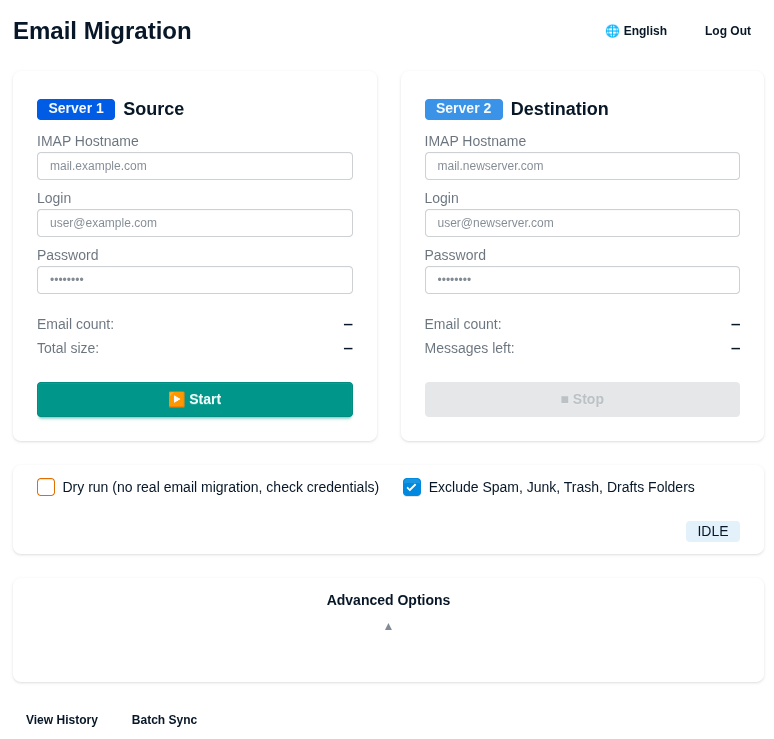
In the left menu is the source server where emails are at the moment. In the right menu should be information for the new destination server.
In this web form, you should use your actual e-mail name, which is needed to migrate, and the password for it.
NB! We recommend setting a temporary password for email before starting email migration and changing it later when you have finished email migration.
With Office 365 is needed to enable IMAP protocol
Please see the following documentation to activate the IMAP access:
Gmail by default does not have IMAP enabled and password auth needs also setting.
Here is how:
Activating "IMAP Access"
- Click on Settings, the gear button on the upper right of Gmail
- Click on "See all settings"
- Lookup "Forwarding and POP/IMAP" tab
- Go down to "IMAP Access"
- Activate "Enable IMAP"
Activating "2-step verification"
Go to https://myaccount.google.com/security
Lookup "Signing in to Google" and follow process to activate "2-step verification".
Now you should see also "How you sign in to Google" and then click on the "2-step verification" line.
At the bottom of the page is generate an "App passwords"
Activating "App password"
You can also go to https://myaccount.google.com/apppasswords it will bring you at the same place.
Follow the instructions to get a 16 characters password. On the pull-down button "Select app", choose
"Other (Custom name)" and call it emailmigrate for example. Name can be anything. Use this password to migrate emails. If you copy/paste the password, remove the blanks inside the password.
PS! Google says that "Every App Password is only used once" can be used only once but actually can be used many times.